Squarespace Schema Markup: How It Works and How to Fix It
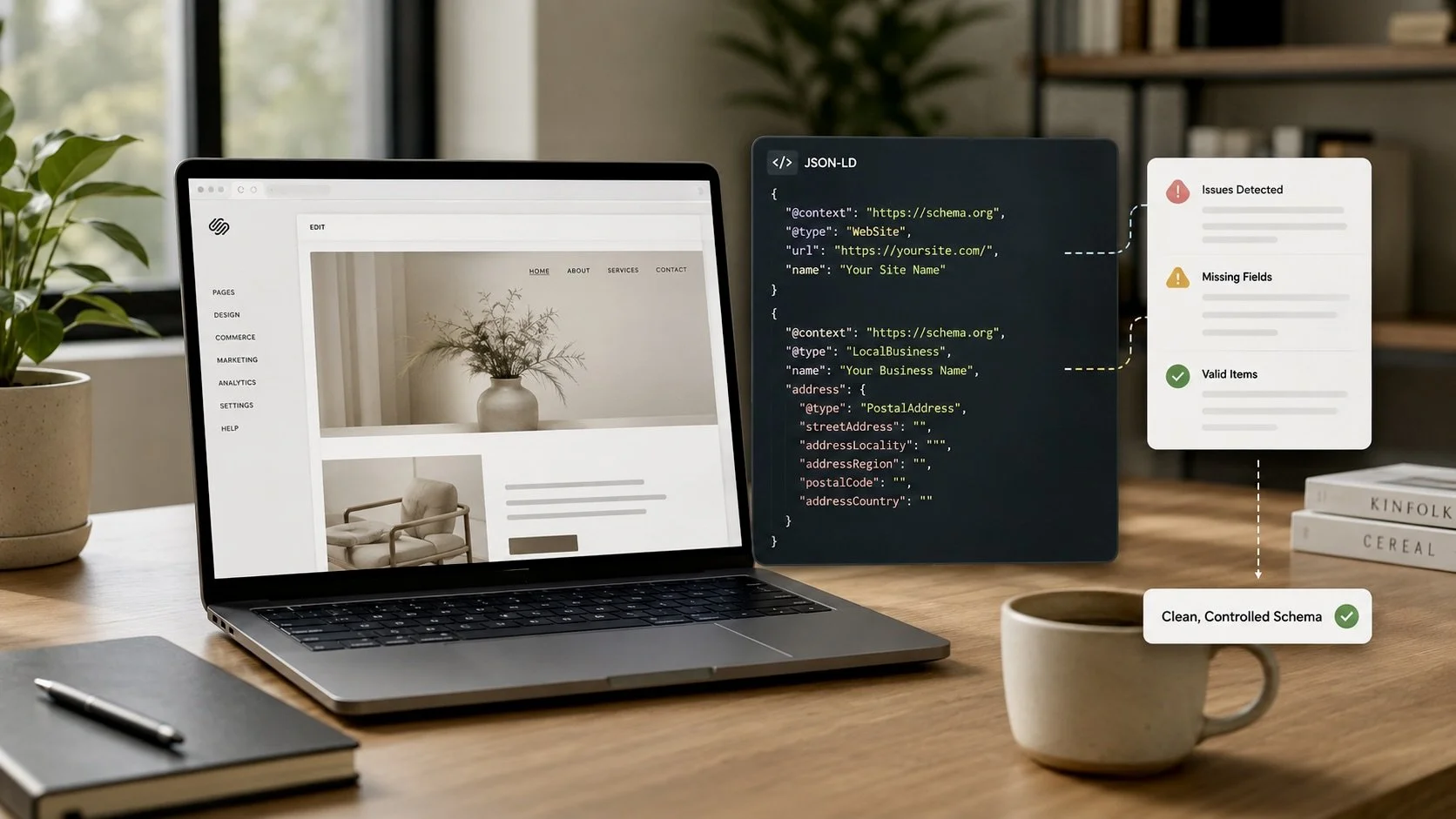
If you've ever tried to clean up structured data on a Squarespace site, you've probably hit a frustrating surprise: Squarespace injects schema markup you didn't write — on every single page — and there's no button to turn it off.
Understanding what those automatic blocks are, and how to work around them instead of against them, is the difference between a clean schema setup and one that quietly confuses Google. Here's what every Squarespace site owner should know.
owner should know.
Key Takeaways:
Squarespace auto-adds two JSON-LD blocks to every page: a WebSite block and a LocalBusiness block.
You can't delete them with code injection — but you can control them.
The default LocalBusiness block is often half-empty; either complete it or strip its data in Business Information.
The clean setup is a global block for site-wide entities plus a per-page block for each page.
Give your own entities an @id so they become the source of truth, then validate before you publishh.
Does Squarespace Add Schema Markup Automatically?
Yes — Squarespace injects at least two JSON-LD structured data blocks into every page, whether you add any of your own or not. Load the source of any Squarespace page and you'll find them:
1. A WebSite block — built from your Site Title and logo:
{
  "@type": "WebSite",
  "url": "https://www.yoursite.com",
  "name": "Your Business Name",
  "image": "https://.../logo.png"
}
2. A LocalBusiness block — built from your Business Information settings:
{
  "@type": "LocalBusiness",
  "address": "",
  "openingHours": "",
  "image": "https://.../image.jpg"
}
Two things to notice. First, both are anonymous — they have no @id, so they're floating, unlinked entities. Second, that LocalBusiness block is often half-empty, with blank address and openingHours fields. That happens when your Business Information is only partially filled in — and an empty business listing is worse than none, because it signals to search engines that your NAP (Name, Address, Phone) data is incomplete.
The catch: you can't delete these blocks with code injection. Squarespace renders them server-side before your custom code runs, and there's no native toggle to disable structured data. So the game isn't removing them — it's controlling them.
Should You Use or Strip Squarespace's Default LocalBusiness Block?
You have two clean options, and both are driven entirely by Settings → Business Information.
Option A — Use it. Fully complete your Business Information: real street address, phone, and business hours. Squarespace will then emit a valid, populated LocalBusiness block that matches reality. This is the right call if you want a simple, hands-off setup.
Option B — Strip it. Clear the business address in Business Information. In most cases Squarespace then stops emitting the address/hours data, leaving only a harmless bare block — and you supply your own, richer business schema through code injection instead. Choose this if you want full control over how your business is described (multiple locations, service types, ratings, and more).
Either way, the pro move is the same: build your own business entity with an explicit @id. Search engines prefer the richly-described, @id-anchored entity over an anonymous auto-generated one, so yours becomes the source of truth and the bare Squarespace block gets ignored. (This is exactly the kind of cleanup we handle in our technical SEO audits.)
How Should You Structure Schema on a Squarespace Site?
The cleanest, most scalable approach splits your structured data into two layers: one global block for site-wide entities, and a separate block on each individual page.
Layer 1: The global block (site-wide entities)
Put this in Settings → Advanced → Code Injection → Header. It holds the things that are true on every page — your business, your website, and key people:
{
  "@context": "https://schema.org",
  "@graph": [
    {
      "@type": "LocalBusiness",
      "@id": "https://www.yoursite.com/#organization",
      "name": "Your Business Name",
      "address": {
        "@type": "PostalAddress",
        "streetAddress": "123 Main St",
        "addressLocality": "Your City",
        "addressRegion": "CA",
        "postalCode": "00000"
      },
      "telephone": "+1-555-555-5555"
    },
    {
      "@type": "WebSite",
      "@id": "https://www.yoursite.com/#website",
      "url": "https://www.yoursite.com",
      "name": "Your Business Name",
      "publisher": { "@id": "https://www.yoursite.com/#organization" }
    }
  ]
}
Layer 2: Per-page blocks (page-specific entities)
Put these in each page's Page Settings → Advanced → Page Header Code Injection. This is where WebPage and BreadcrumbList live — because they're different on every page:
{
  "@context": "https://schema.org",
  "@graph": [
    {
      "@type": "WebPage",
      "@id": "https://www.yoursite.com/services#webpage",
      "url": "https://www.yoursite.com/services",
      "name": "Our Services",
      "isPartOf": { "@id": "https://www.yoursite.com/#website" },
      "about": { "@id": "https://www.yoursite.com/#organization" },
      "breadcrumb": { "@id": "https://www.yoursite.com/services#breadcrumb" }
    },
    {
      "@type": "BreadcrumbList",
      "@id": "https://www.yoursite.com/services#breadcrumb",
      "itemListElement": [
        { "@type": "ListItem", "position": 1, "name": "Home", "item": "https://www.yoursite.com" },
        { "@type": "ListItem", "position": 2, "name": "Services", "item": "https://www.yoursite.com/services" }
      ]
    }
  ]
}
The Pitfall to Avoid:
Never put a WebPage node in your global block. Because the global block runs on every page, a WebPage node there will hardcode your homepage's URL and title onto every single page — telling Google that your services page, your contact page, and your blog are all "the homepage." WebPage belongs at the page level, always.
How does @id Connect it all Together?
The @id is what stitches your separate blocks into one connected graph. Notice how the per-page WebPage references "@id": ".../#organization" and ".../#website" — those point back to the entities in your global block. Search engines merge these references across blocks into a single graph, even though the code lives in different injection areas. This is how you avoid duplicate, competing entities and keep your structured data coherent.
How do You Check if Your Squarespace Xchema is Working?
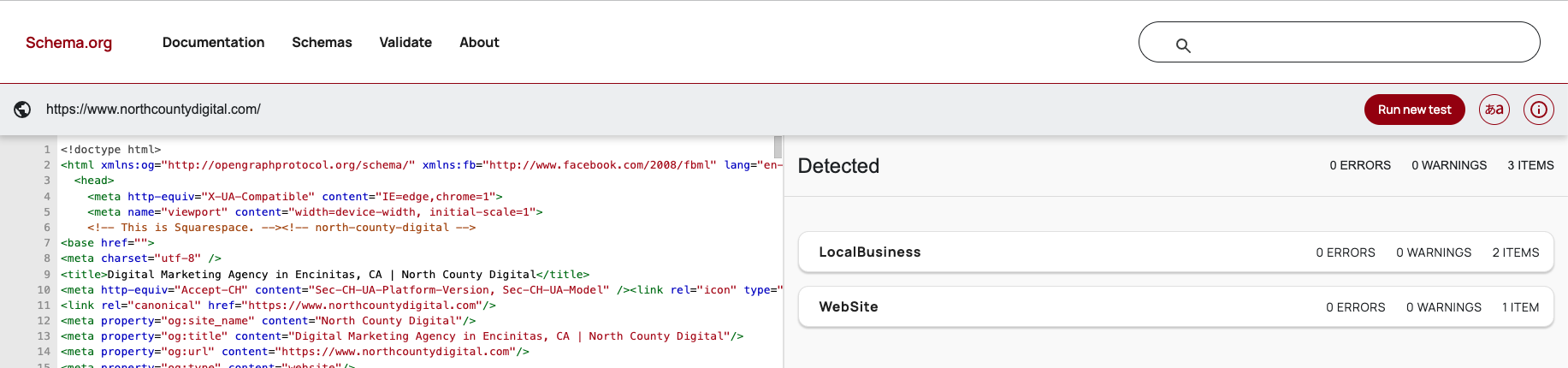
Run the page through the Schema Markup Validator before you call it done. Two things to keep in mind:
Warnings aren't errors. Most "warnings" are just "recommended field missing" notices — they don't break anything or hurt SEO. Only red errors need fixing.
Watch for invalid properties. For example, serviceType is valid on a Service but throws a warning on a LocalBusiness — small stuff, but it keeps your report clean.
And one myth worth busting: FAQPage schema no longer produces the expandable Q&A rich result for most businesses. Google restricted that to authoritative government and health sites in 2023. It's still useful for AI answer engines, but don't add it expecting star-studded search results.
The Takeaway
Squarespace's automatic schema isn't something to fight — it's something to manage. Complete or clear the default location block, own your business entity with a solid @id, keep site-wide entities global and page-specific entities per-page, and validate before you publish. Do that, and your structured data goes from a tangled mess of half-empty duplicates to a clean, connected graph that search engines and AI answer engines actually trust.
Frequently Asked Questions
Does Squarespace add schema markup automatically?
Yes. Every Squarespace page includes at least two auto-generated JSON-LD blocks — a WebSite block (from your Site Title and logo) and a LocalBusiness block (from your Business Information settings) — even if you never add structured data yourself.
Can you remove Squarespace's default schema?
No — you can't delete the default blocks through code injection, because Squarespace renders them server-side before your code runs, and there's no setting to turn structured data off. Instead, you manage them: complete or clear your Business Information, and add your own @id-anchored entities so yours become authoritative.
Why is my Squarespace LocalBusiness schema showing an empty address?
Because your Business Information is only partially filled in. When the address and hours fields are blank, Squarespace still emits the LocalBusiness block with empty values. Either complete those fields, or clear the address entirely so the empty data stops appearing.
Where do you add custom schema in Squarespace?
Site-wide schema goes in Settings → Advanced → Code Injection → Header. Page-specific schema goes in each page's Page Settings → Advanced → Page Header Code Injection.
Does FAQ schema still work on Squarespace?
FAQPage schema is still valid and helps AI answer engines understand your content, but since 2023 it no longer produces the expandable Q&A rich result in Google search for most businesses — that feature is now limited to authoritative government and health sites.